From schedule to invoice in one click
Turn a booked schedule into an invoice in one click, with overtime read from timesheets and statements talent can check themselves. No more retyping fees or typing up hours.
Connects to the accounting software you already use
- Xero
- QuickBooks
- Sage
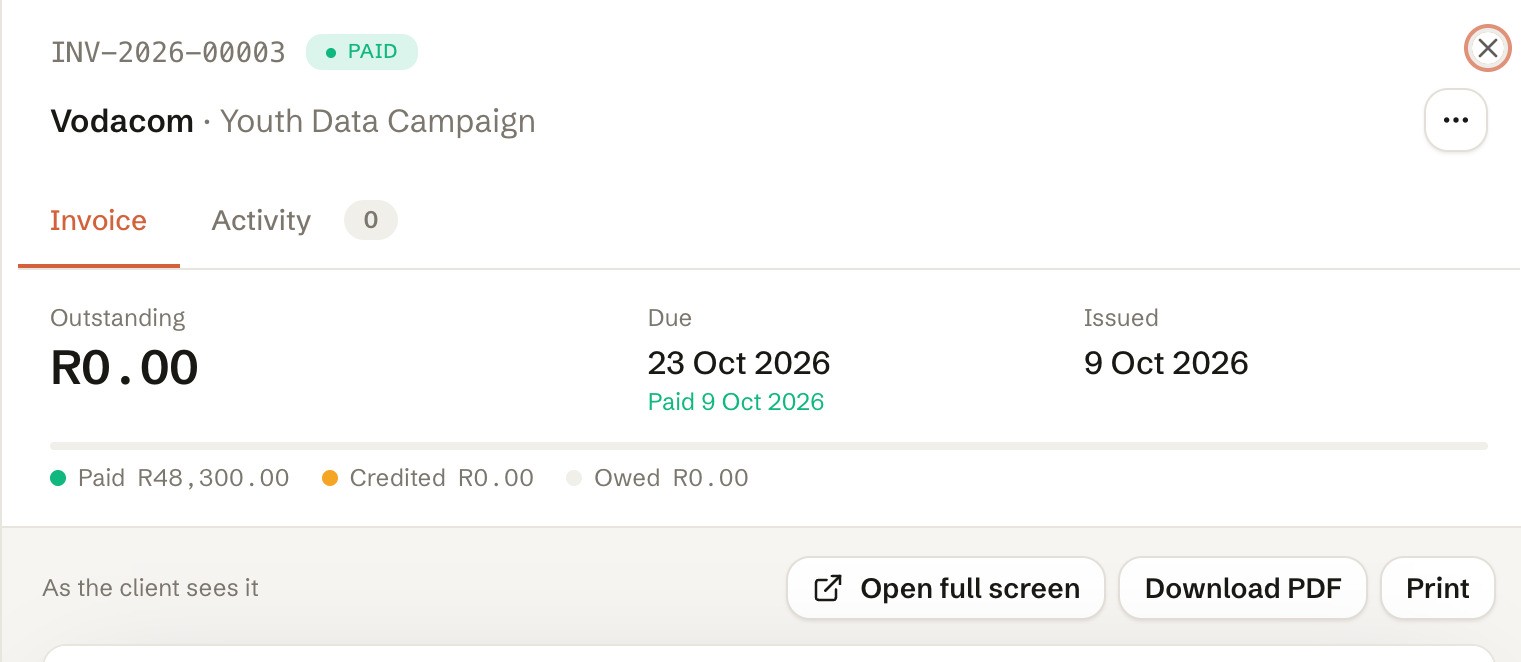
Still retyping fees and chasing hours? Let RosterBook do it.
Build invoices from the schedule
Convert a schedule into an invoice in a single click.
Load overtime from timesheets
Upload the signed timesheet and RosterBook reads the hours, then adds the overtime to the booking.
Cut the “when do I get paid?” emails
Fee notes, statements and payment status sit in the talent portal, so talent can check instead of asking.
Automate billing with per-client rules
Set commission, fees and VAT once per client and every invoice follows. Overdue invoices create a chase task.
Invoices and talent bills go out to your accounting software, and payments come back into the booking.
- Xero
- QuickBooks
- Sage
Run the whole booking in one place
Capture the enquiry, present your talent and manage the booking in the same place you get paid.
Capture enquiries
Stay on top of every enquiry.
Learn more →Present talent
Get the right talent in front of clients.
Learn more →Manage bookings
Know who is free, held or confirmed.
Learn more →Moving from another system? We move you in. You keep booking.Book a migration call →
Common questions
How does a schedule become an invoice?
Build the schedule on the booking, then click Convert schedule to fees. Each day becomes a fee line at the day rate, multiplied for the day type (a half day is 0.65, for example). Fee and expense lines flow into the draft invoice, which updates itself whenever the fees change.
How does the timesheet reading work?
Upload the signed timesheet and RosterBook reads the hours, then adds the overtime to the booking so it flows into the invoice.
Can I set different fees and VAT for each client?
Yes. Commission and booking fees can be a percentage or a fixed amount, and you can override them per client, per talent or per booking. VAT or GST uses the name and rate you set, with zero-rated and export clients handled, and withholding such as PAYE is supported.
Can I change an invoice after it's been sent?
Not directly, which stops fees drifting. If an invoice is approved but not yet sent, you can revert it to draft, and admins and owners can unsend one that has no payment against it. Otherwise, revise it: RosterBook issues a credit note and a new version, and the talent side adjusts with it.
What can talent see in the portal?
Fee notes, statements and payment status under Payments: what's still due, what's been paid, and statements as PDFs. Talent aren't paid inside RosterBook. The money moves through your bank, and RosterBook records it and produces the remittance advice.
Which accounting software does it connect to?
Xero, QuickBooks and Sage. An admin or owner connects it in Settings. Sent invoices and talent bills go out, and payments and credit notes come back into the booking.
Can clients pay online, and are reminders automatic?
Clients pay you the way they do today and view or download invoices in their portal. You record the payment, or it comes back from your accounting software. RosterBook doesn't send automatic reminders: an overdue invoice creates a chase task for your team, and you can resend it by hand.